Position Elements
I am passionate in learning new technologies and writing articles about them to explain in a way so that a non technical person can also understand.
Position elements in CSS play an important role in placing the objects in a page and are an important skill for anyone learning Web development. There are 5 types of position types. They are:
- Static
- Relative
- Absolute
- Fixed
Sticky
Static: This is the by default the position property for all the elements. Means where ever you define an object it will be placed there.
Relative: This is an interesting property, when the object moves to a new position in relation to its old position. for e.g. in the below image 1 we see that that the boxes are all in one line but in image 2 we gave given a relative position for box2 and it moves from the original position to the new position.
Image 1:
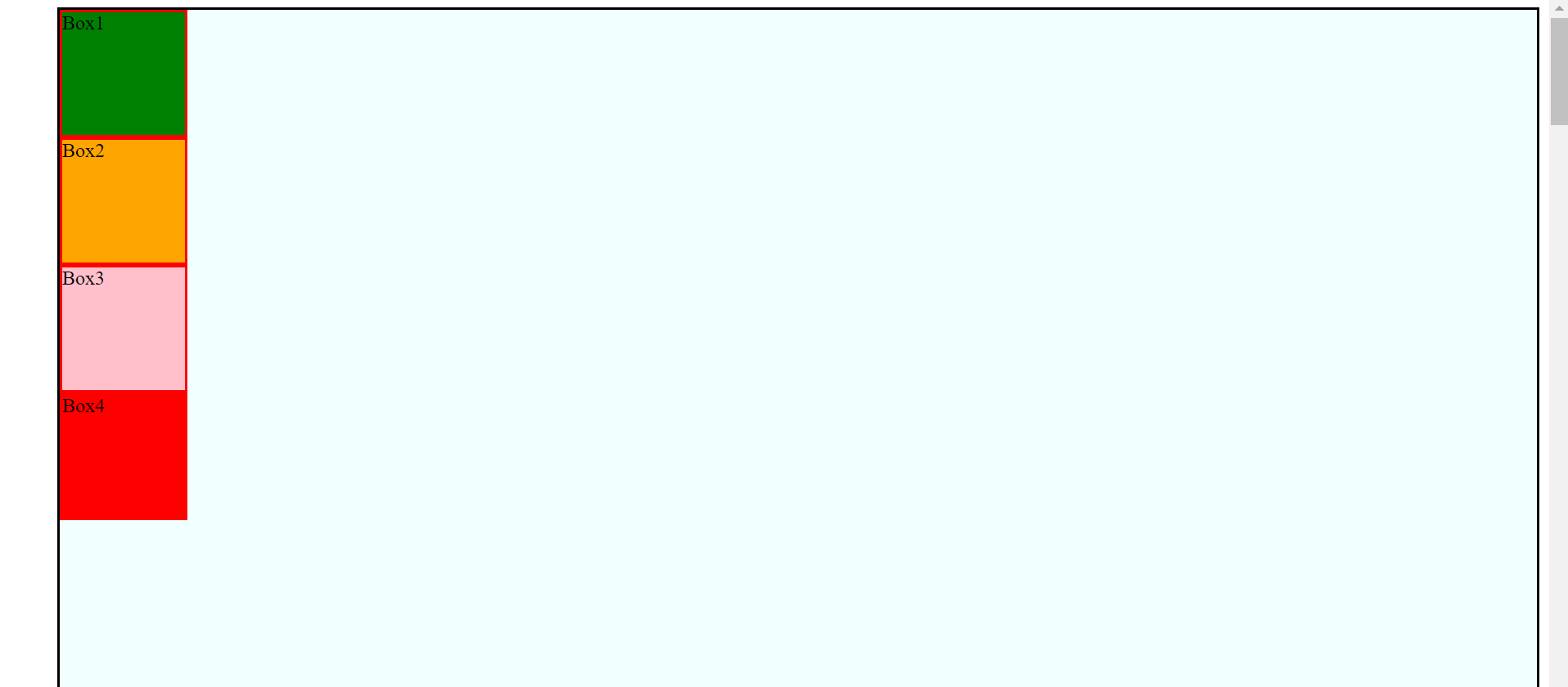
Image2 (arrow shows the original position):
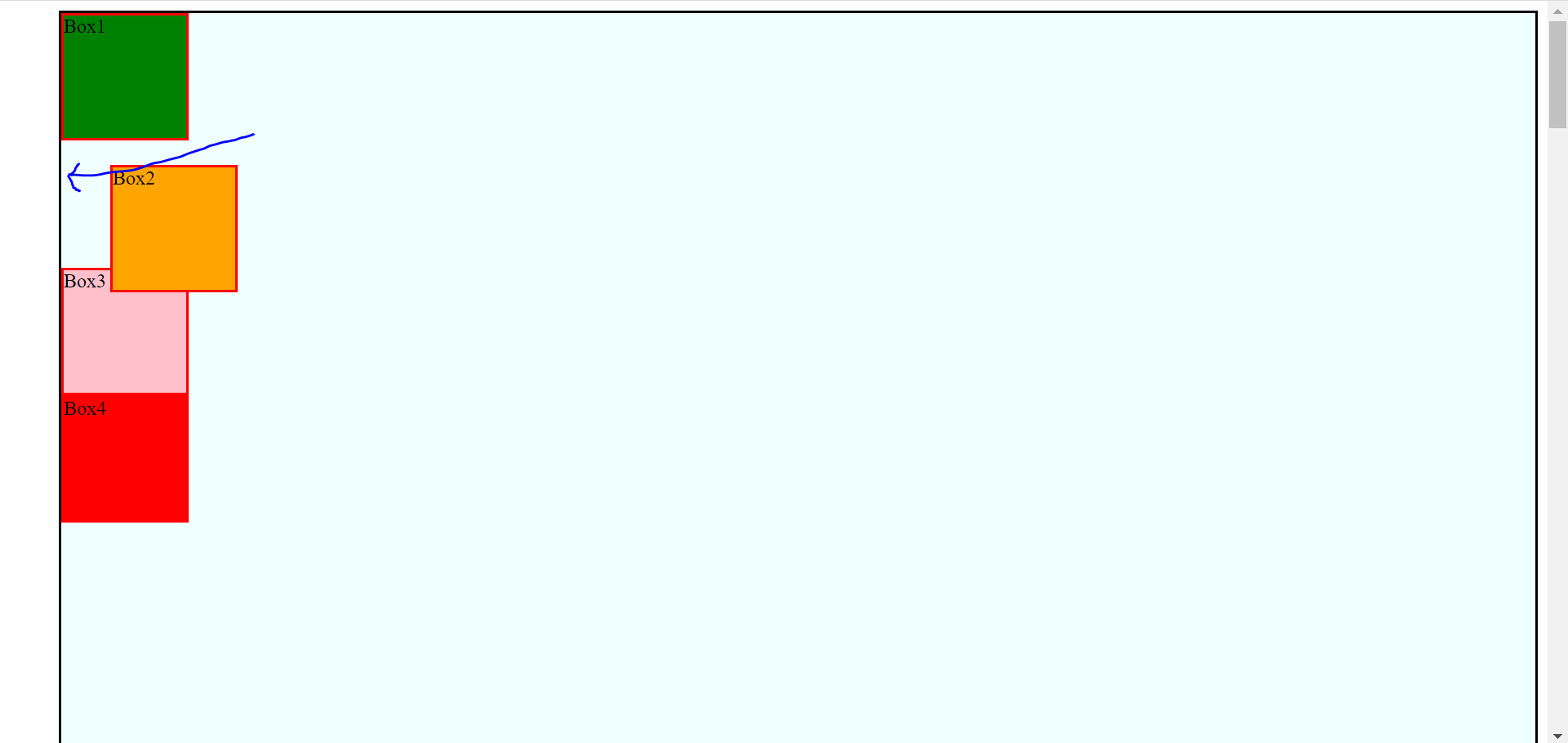
there are 2 important features of this: a. It creates a gap at the original location. b. No Element takes the place that is vacated by moving the object with position as relative.
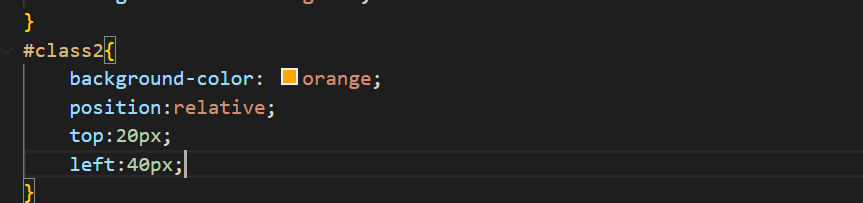
Code to change the position relative can be written in below manner. It is required that we give the top/bottom/right/left location as that will define where we need to move as compared to original position.
- Absolute: In this case the object moves the given coordinates with respect to the top of the page. considering top left corner as 0,0. When we give position as absolute then the object moves to new coordinates given in relation to the home(0,0)
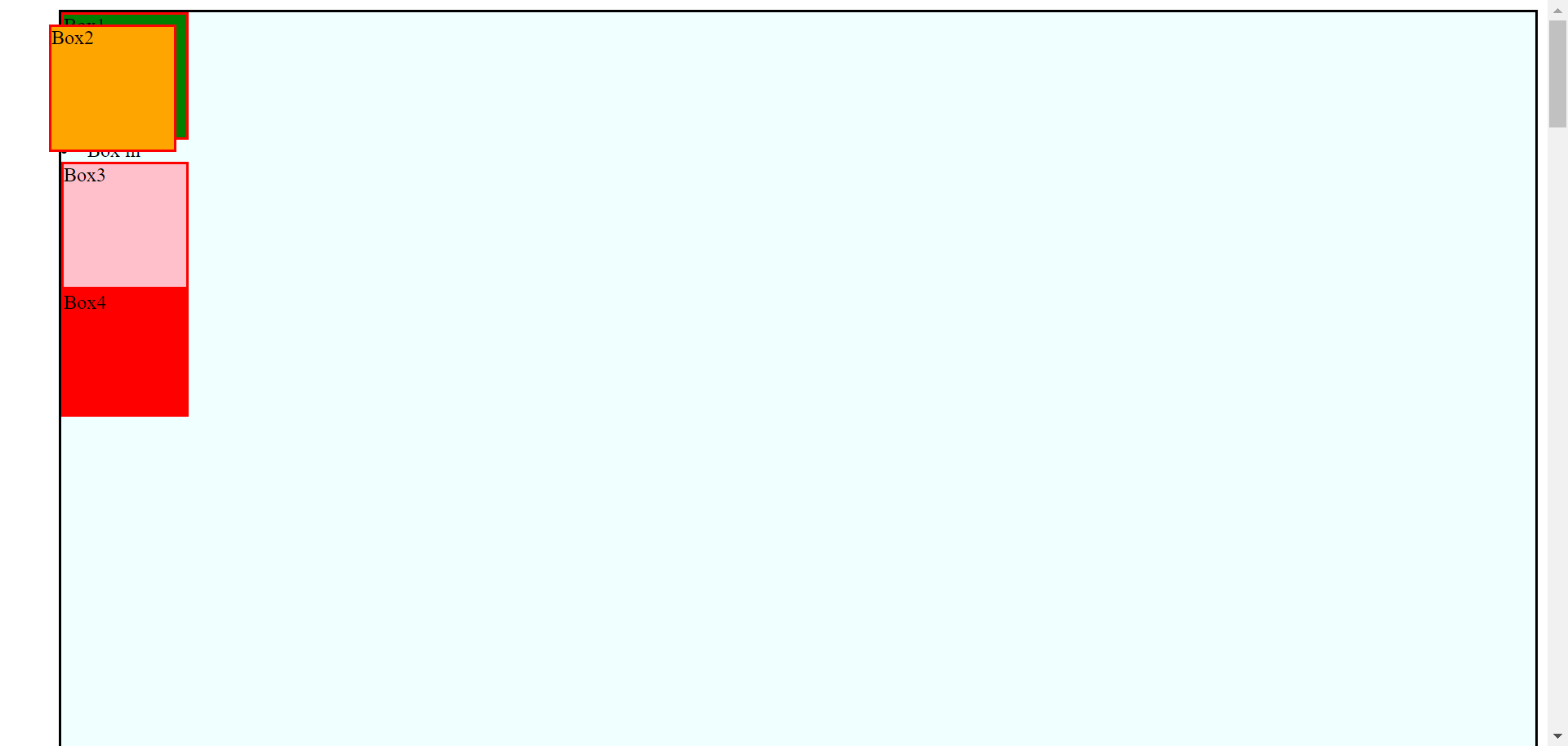
there are 2 important features of this:
a. It does not creates a gap at the original location.
b. Element (after the element on which absolute property is applied) takes the place that is vacated by
moving the object.
Code to change the position absolute can be written in below manner. It is required that we give the top/bottom/right/left location as that will define where we need to move as compared to original position.

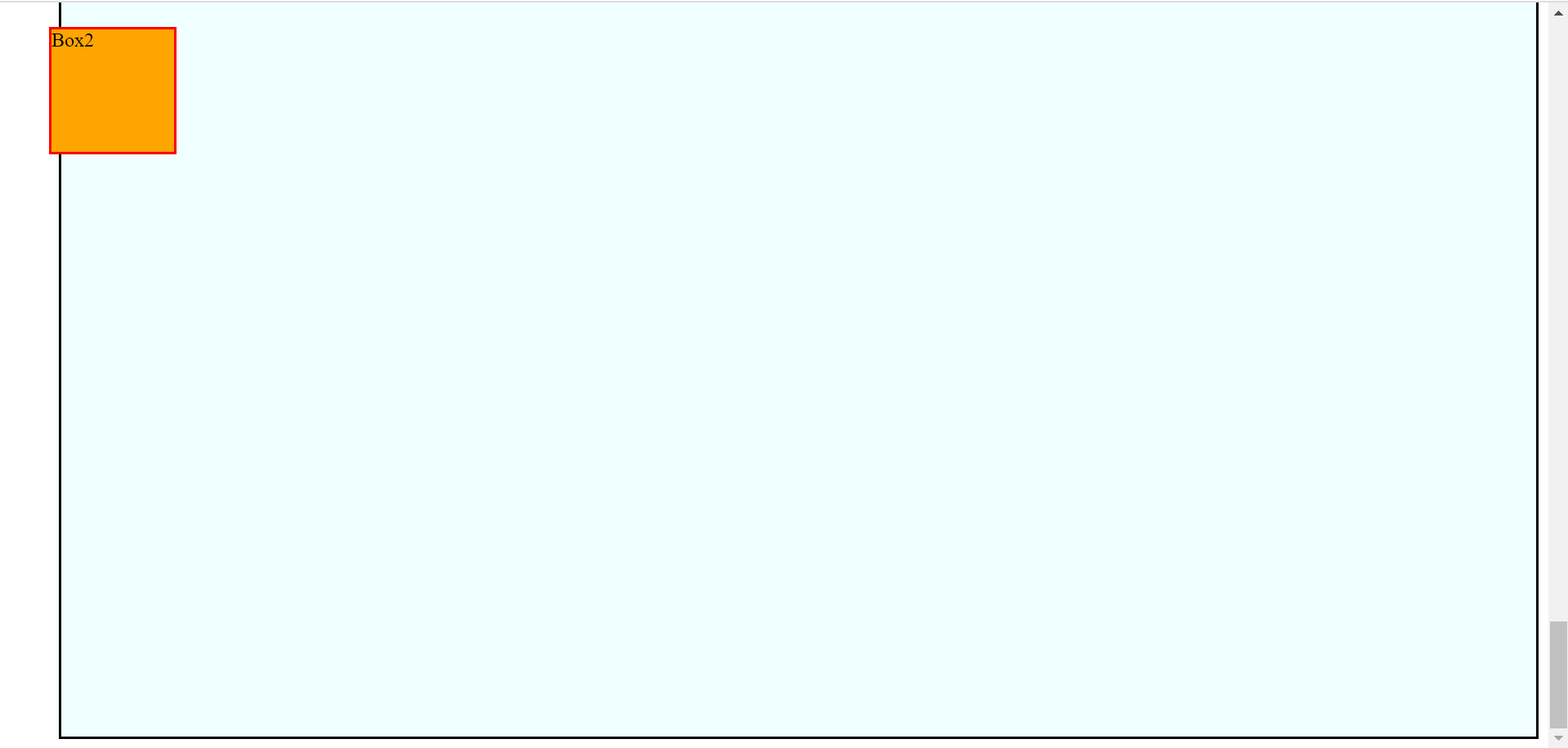
- Fixed: This is one of the simplest property in position. Whenever we give this property, the object get stuck to that place. We all have seen the chat options at the bottom of the page, that stays at the bottom even when we scroll to the top or bottom. That same thing is done by fixed, it cuts that object from other objects in the page and fixes the object to the position defined.
Image 1 shows the location at which it is fixed, Image 2 shows the location of the object is fixed even though we have scrolled through the page. Image 3 shows that even when we scroll to the bottom, the object is fixed at its location.
Image 1:
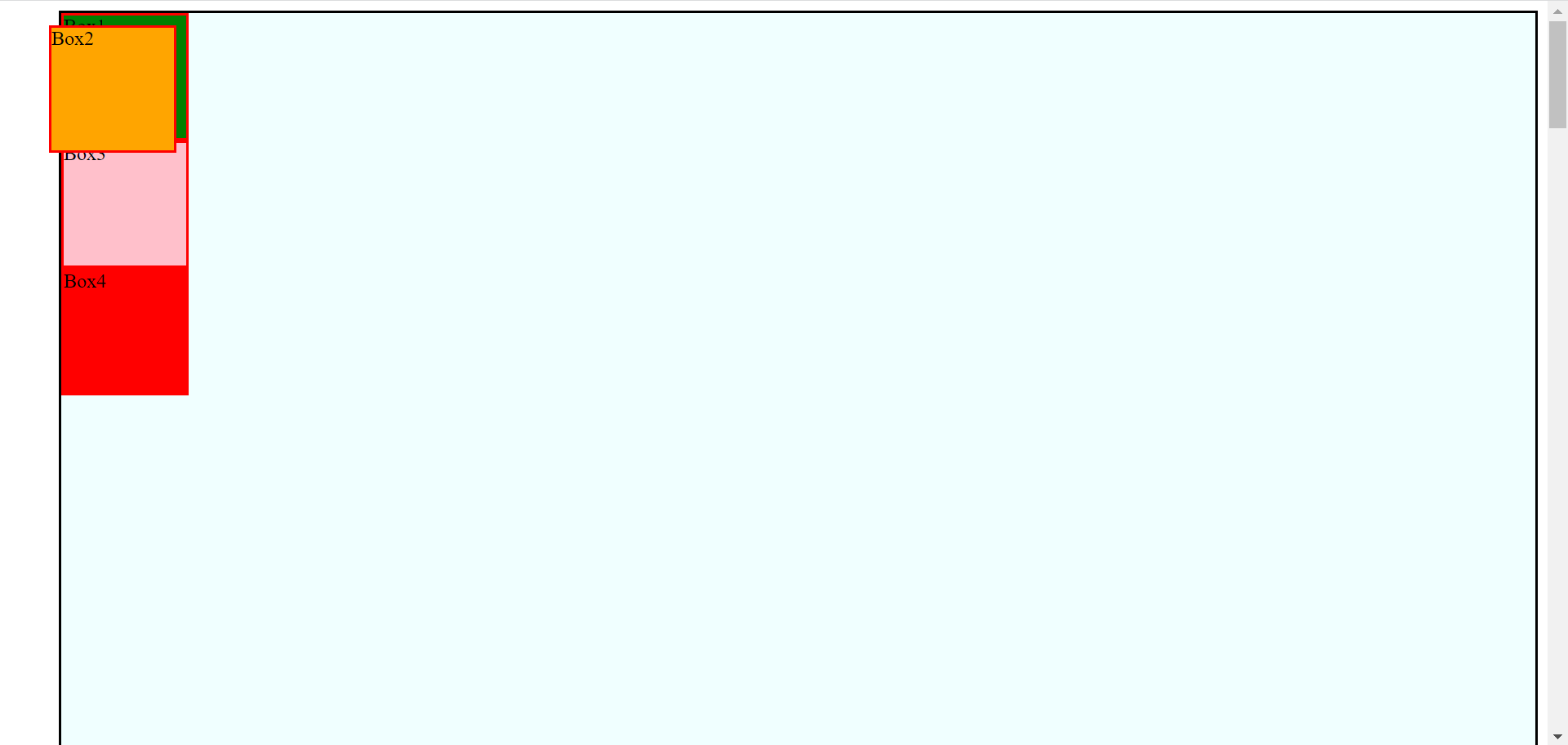
Image 2:
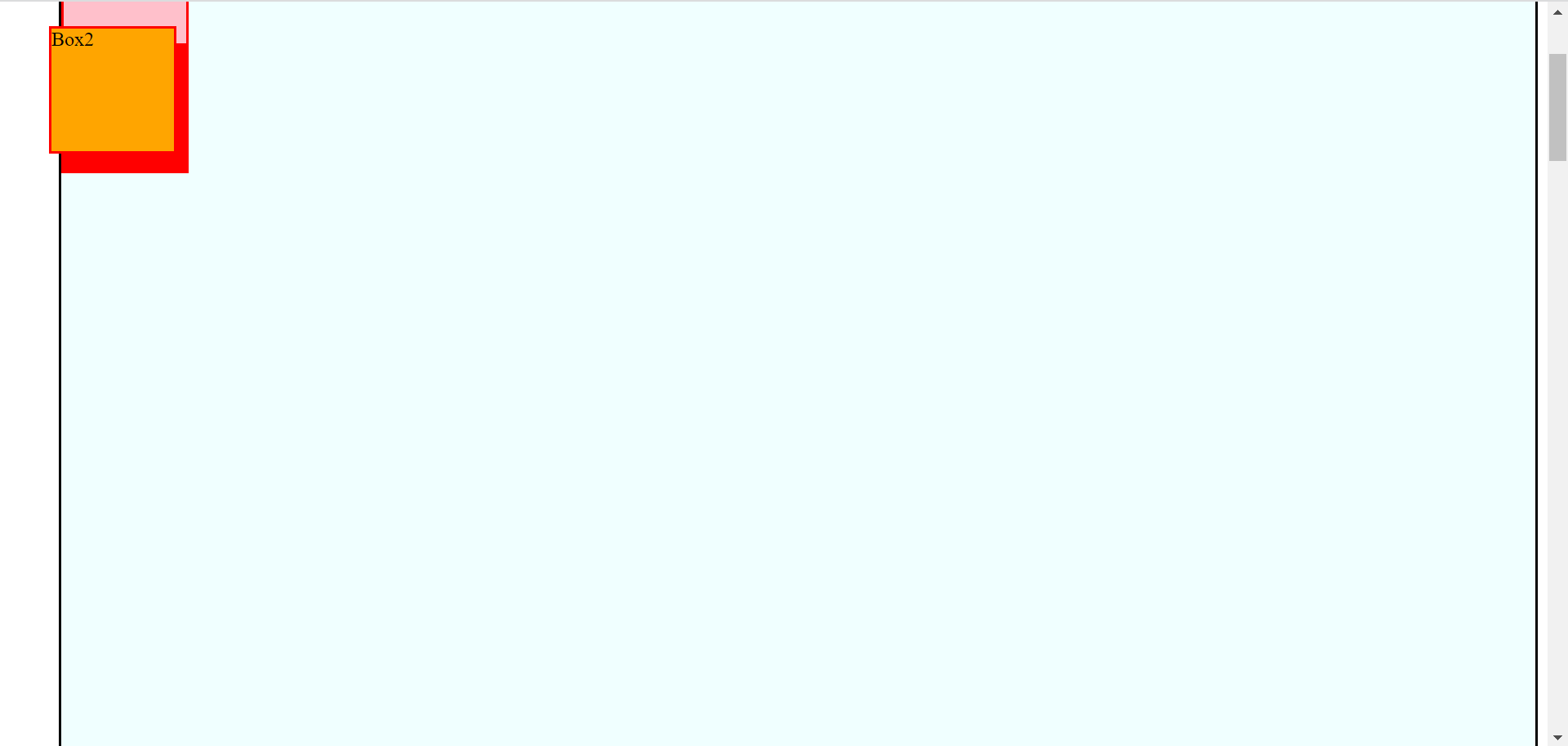
Image 3:
Code to change the position fixed can be written in below manner. It is required that we give the top/bottom/right/left location as that will define where we need to move as compared to original position.

- Sticky: This is one of most frequently used property for e.g. we have seen the menu baron top of web page, which sticks to the page even when we scroll down the page. In this case when we add position sticky to any object, nothing happens till the object is in the viewport. However as soon as we scroll down or up and the object is supposed to scroll, it stick to the position given in sticky attribute.
However it remains sticky only in the parent in which it is defined.
Image1 shows that object is still at its original location even though Sticky is defined for it.
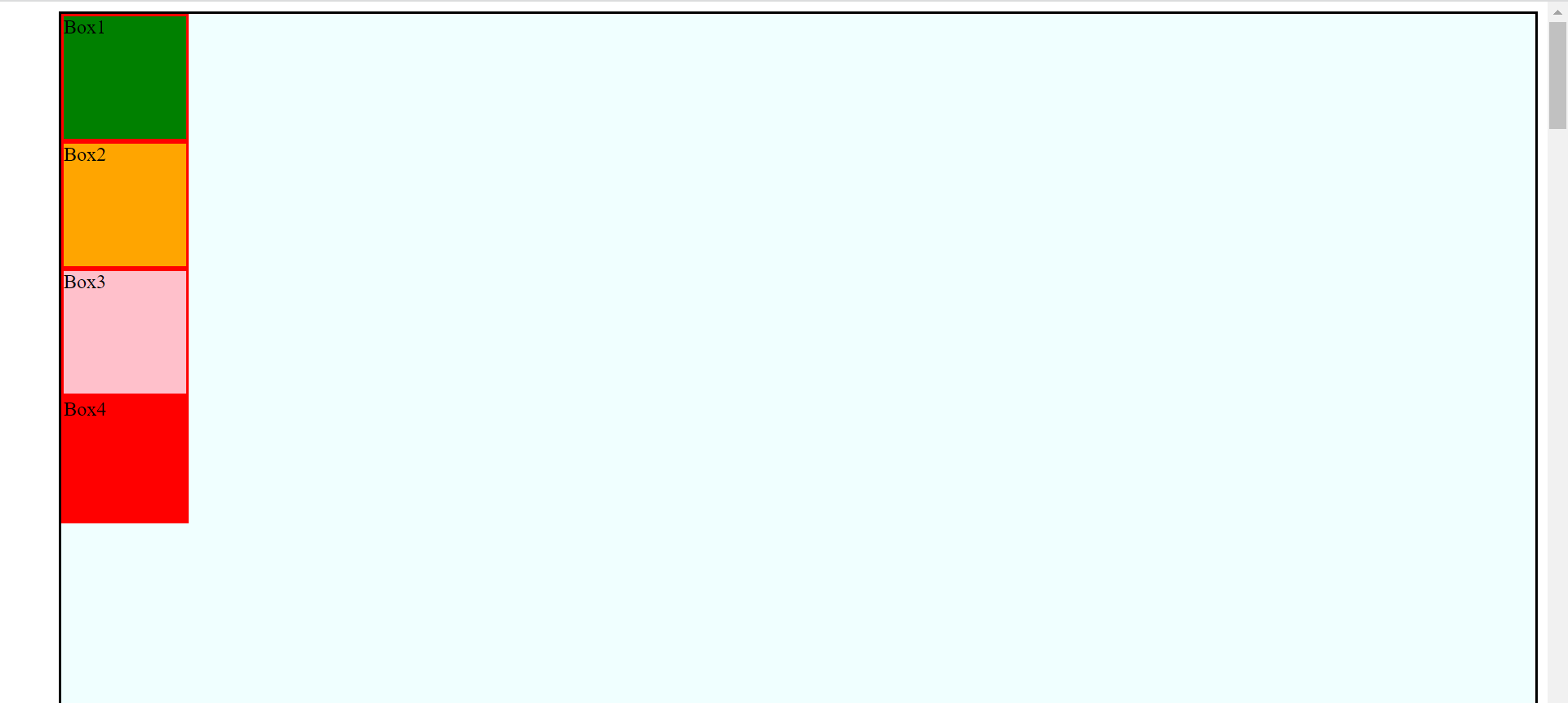
Image2 shows that object sticks to its location once it original location is moved from frame.
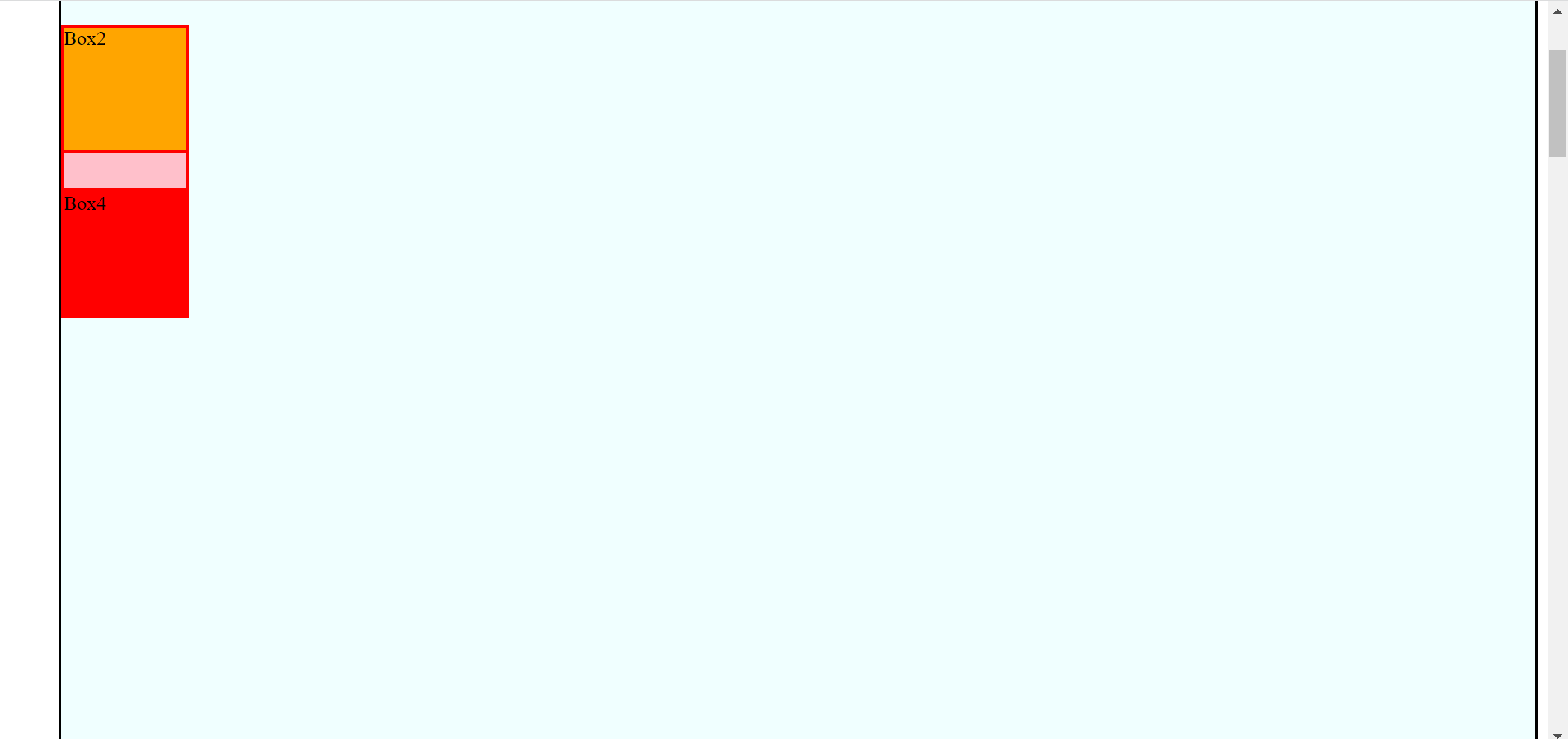
Code to change the position sticky can be written in below manner. It is required that we give the top/bottom/right/left location as that will define where we need to move as compared to original position.

These attributes solve a big problem of positioning the elements on a web Page.
